> For the complete documentation index, see [llms.txt](https://docs.calypso.money/llms.txt). Markdown versions of documentation pages are available by appending `.md` to page URLs; this page is available as [Markdown](https://docs.calypso.money/get-started-with-calypso-ui/make-exchanges-via-ui/how-to-exchange-one-crypto-asset-to-the-other.md).

# How to exchange one crypto asset to the other

Exchanges are used to swap one asset in your account for another within the established limits.\
You can find the established limits here — [**limits**](https://docs.calypso.money/general/limits).

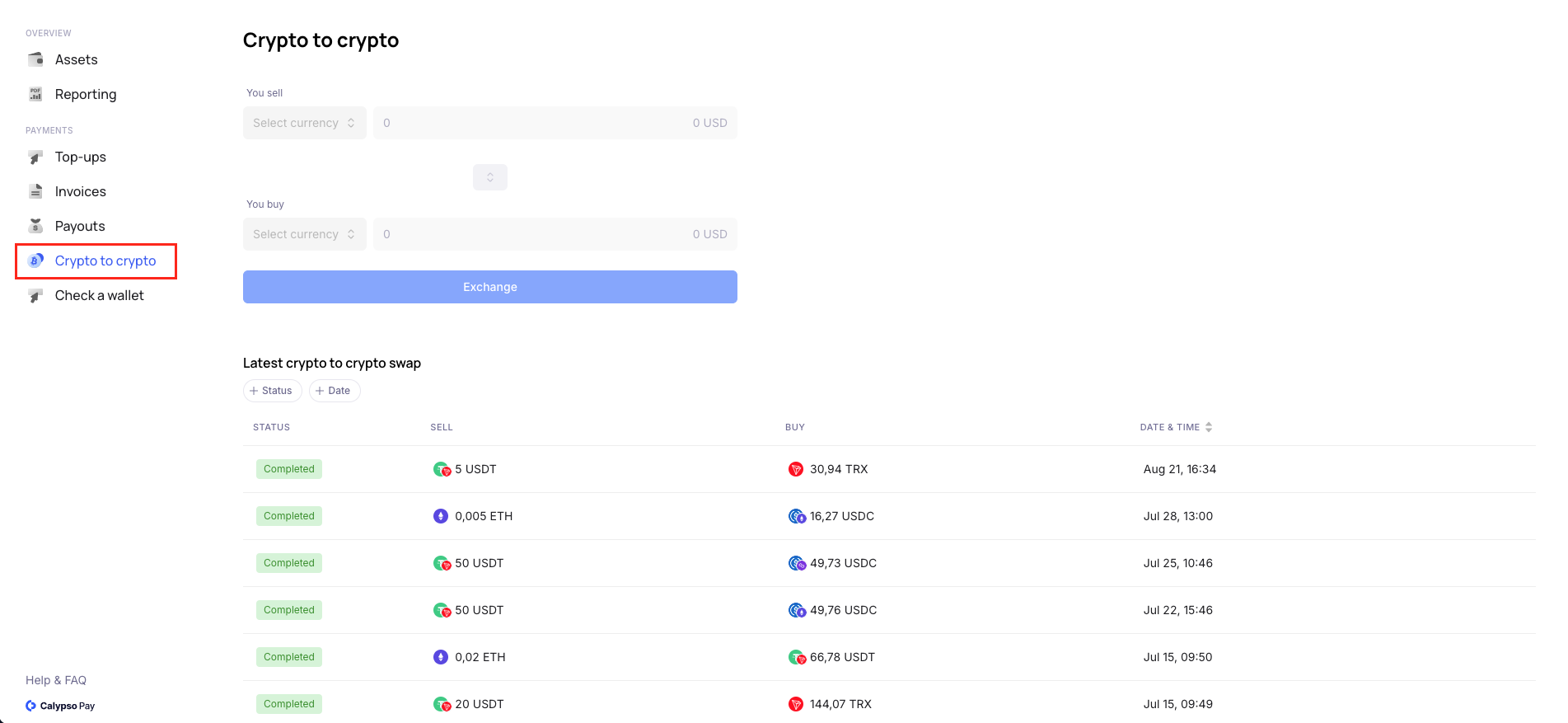
1. First, go to the "Crypto to Crypto" tab, you will be go to the exchange page.

<figure><img src="https://files.readme.io/0f112b67c8ba739df2d1dcd75595b8c8cf29694f507c6eac8747b98985e3268f-__2024-08-21__22.46.44.png" alt=""><figcaption></figcaption></figure>

2. Select the asset "You sell" from the list of available ones.
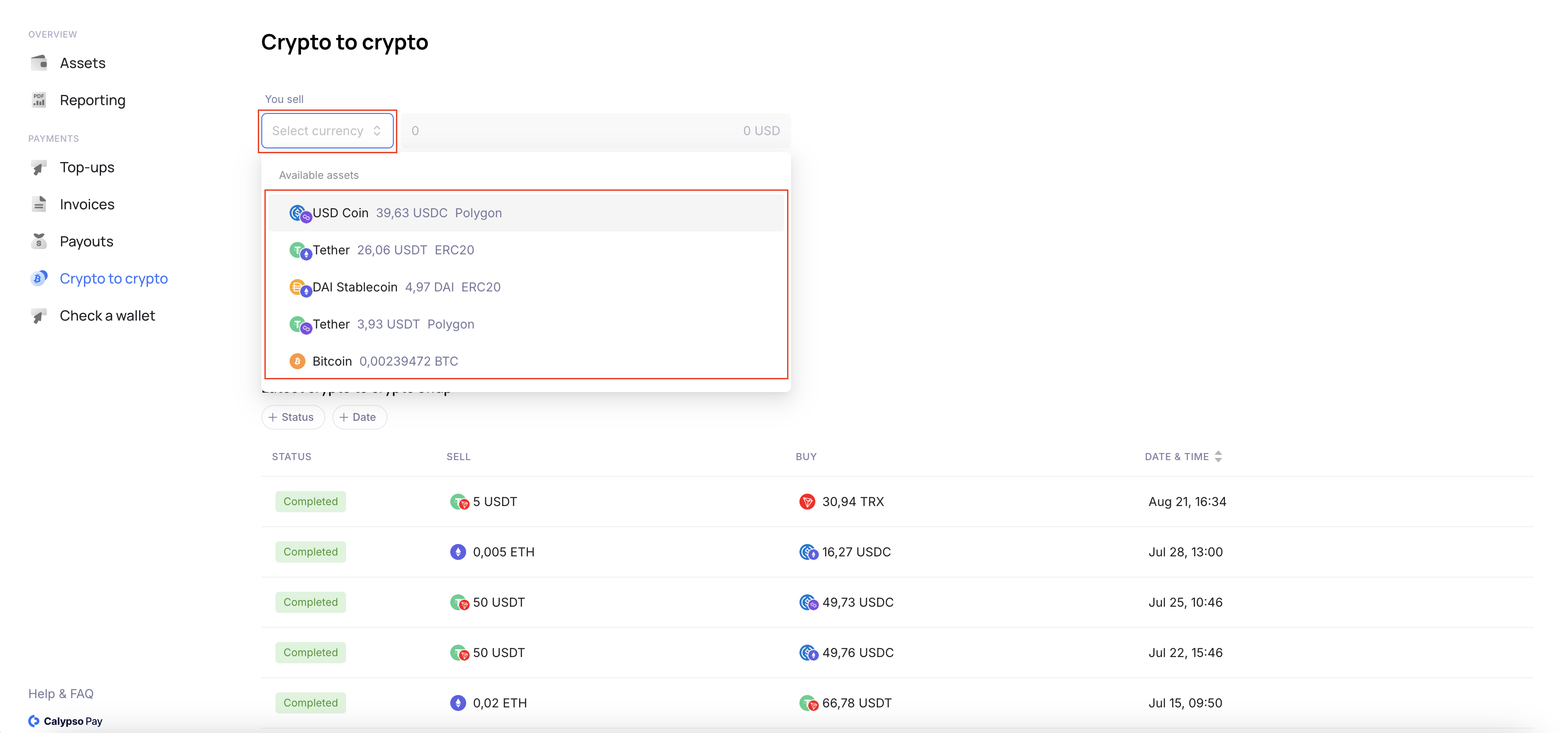
<figure><img src="https://files.readme.io/67f0a373a32f067c182ac0174e6b48bb4f0272b5a9497a20e6ea338cdda6f8c8-__2024-08-22__08.50.02.png" alt=""><figcaption></figcaption></figure>

3. Select the asset "You buy" from the list of available ones.
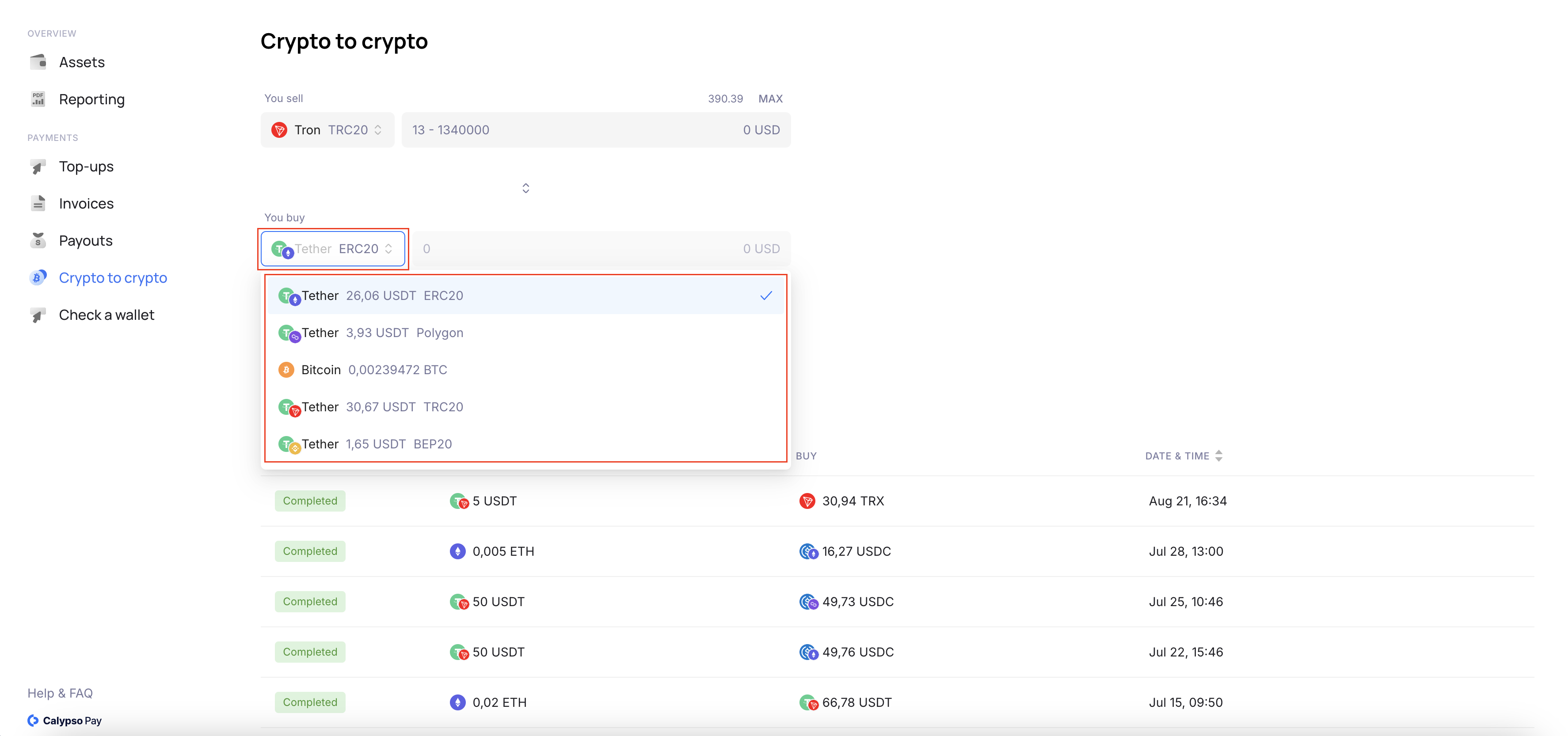
<figure><img src="https://files.readme.io/24cac827f6fbfd02214f2ae0a321e89352ffc4e0a4336d95648df52e1d54c76d-__2024-08-22__08.52.06.png" alt=""><figcaption></figcaption></figure>

4. Enter the amount of the asset in the "You sell" field, or by clicking the MAX button the field will be filled with the maximum available amount of this asset on your account. In the form below you can see the calculation for your exchange.
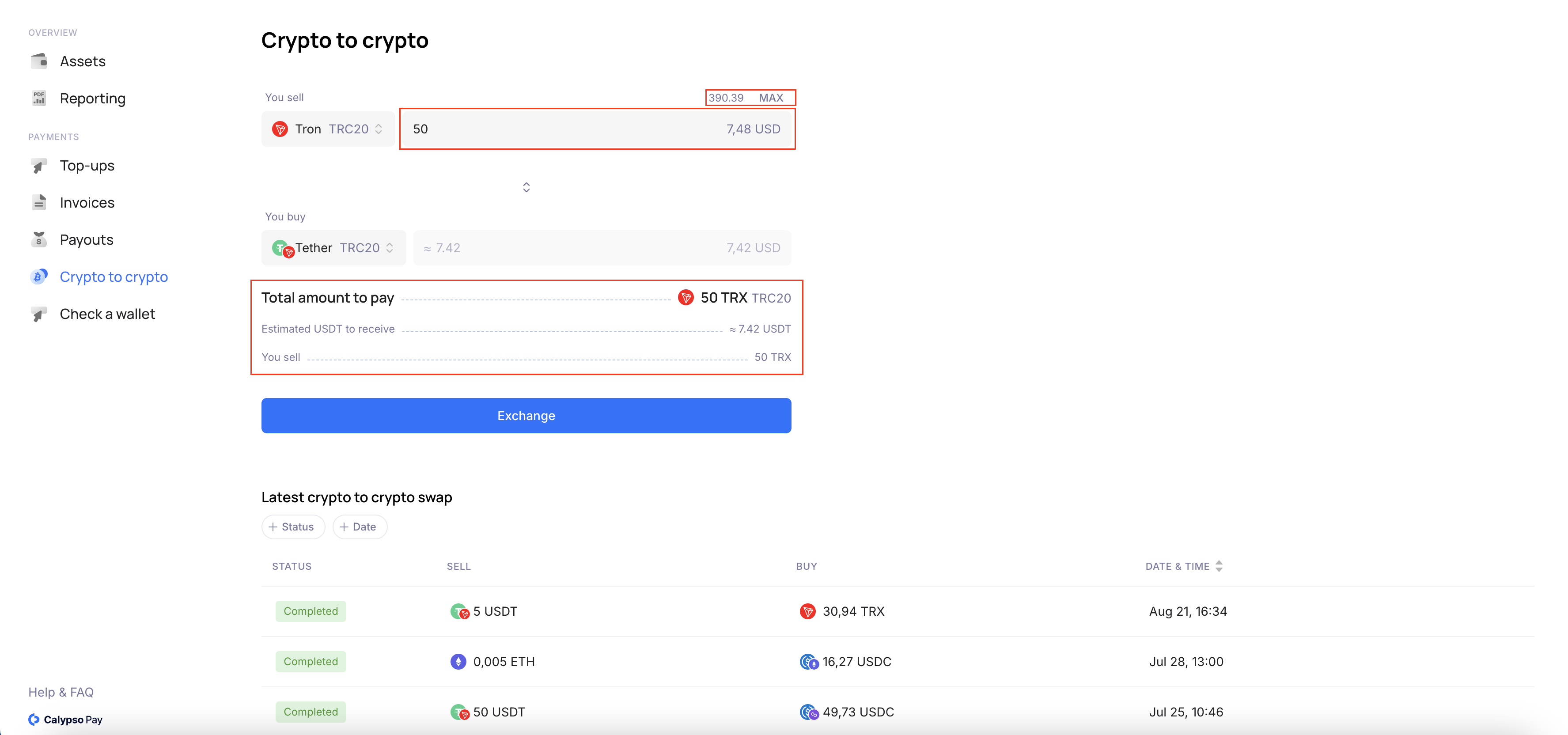
<figure><img src="https://files.readme.io/d2bf969674e04fc0c3b18f5e018f268cd4a920fc6285263ccf446fbe87f49d90-__2024-08-22__08.53.21.png" alt=""><figcaption></figcaption></figure>

5. If several minutes have passed since you selected the assets, you can update the exchange rate data to correctly display the amounts before the exchange in the calculation form by clicking on the "Update" button.
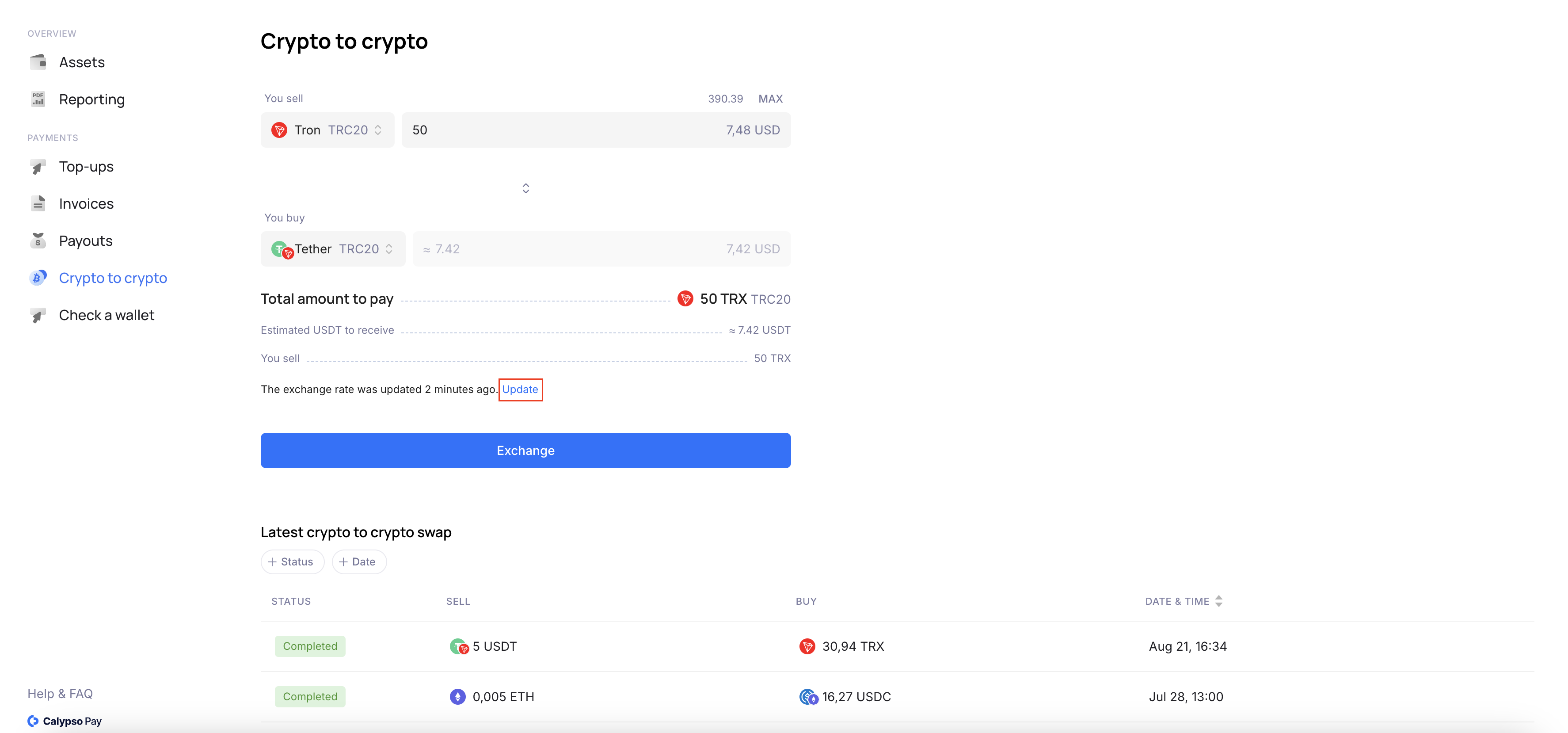
<figure><img src="https://files.readme.io/cd811d2102bf5915af9aa6dd5c1eb133391d3795ceb00a8df7b8506d75ef77aa-__2024-08-22__08.55.12.png" alt=""><figcaption></figcaption></figure>

Below we see an example where the amounts changed after the update because the exchange rate changed during this time.
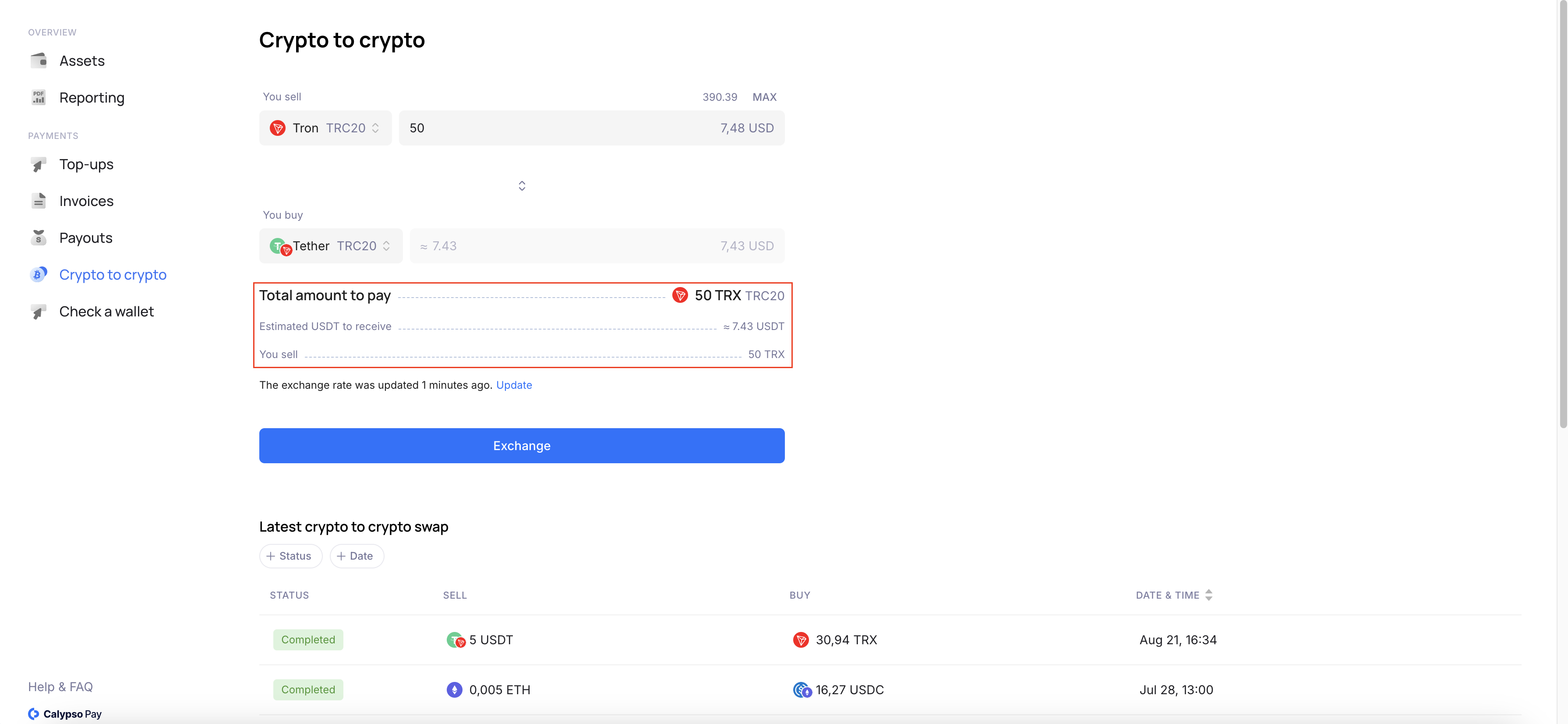
<figure><img src="https://files.readme.io/1de0980db9f89effd3c95b13cc9b25a4b12386a439a8b183100c5de44bc044a7-__2024-08-22__08.56.32.png" alt=""><figcaption></figcaption></figure>

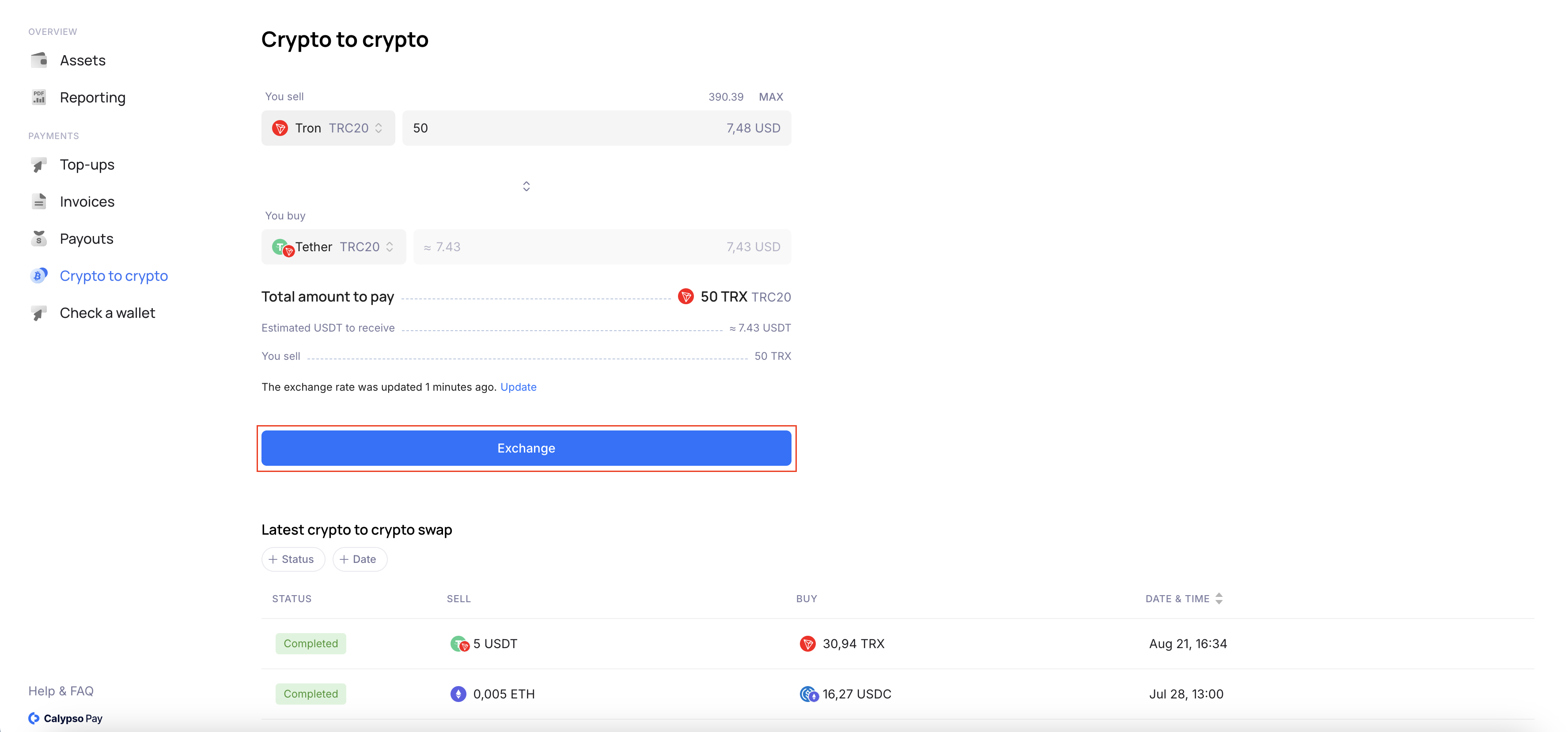
6. Click to "Exchange".

<figure><img src="https://files.readme.io/689e4f615aea38239d850870e2a5e518c8bbc5766af855b69aff9f8e6a0044bc-__2024-08-22__08.57.17.png" alt=""><figcaption></figcaption></figure>

7. You go to the exchange confirmation page, where you see the exchange calculation and also have the opportunity to update the calculation data by clicking the "Update" button.\
   Next step click to the "Confirm" button.
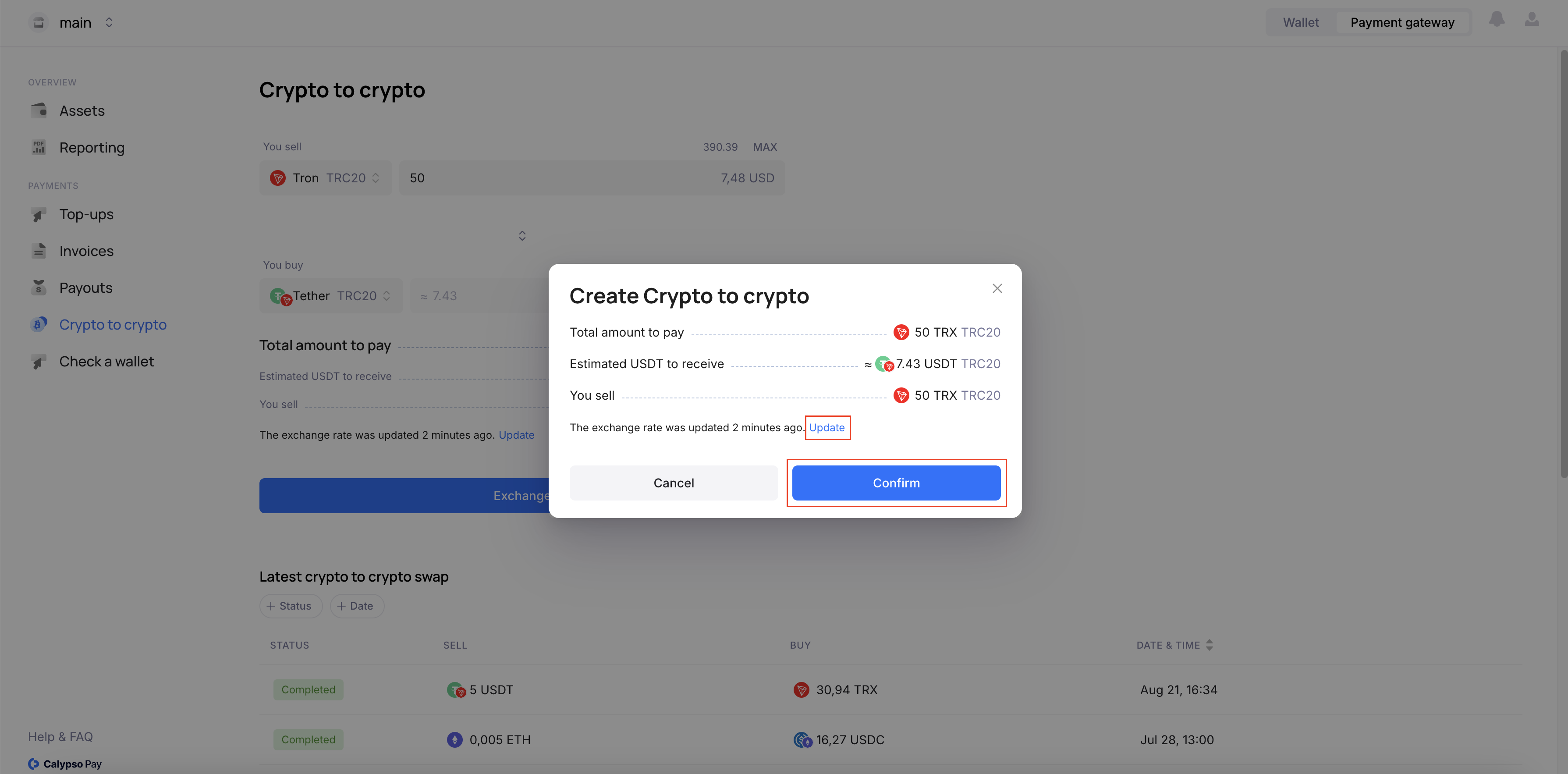
<figure><img src="https://files.readme.io/b688d00173c04abd54e2ecb2ea4c7ed98c9a2adce261bfb1b8415b2f48c3a89c-__2024-08-22__08.57.56.png" alt=""><figcaption></figcaption></figure>

8. To go to the exchange page and the list of your exchanges, click "Done", if you click on the "Go to Assets" button, you will be taken to the page with assets.
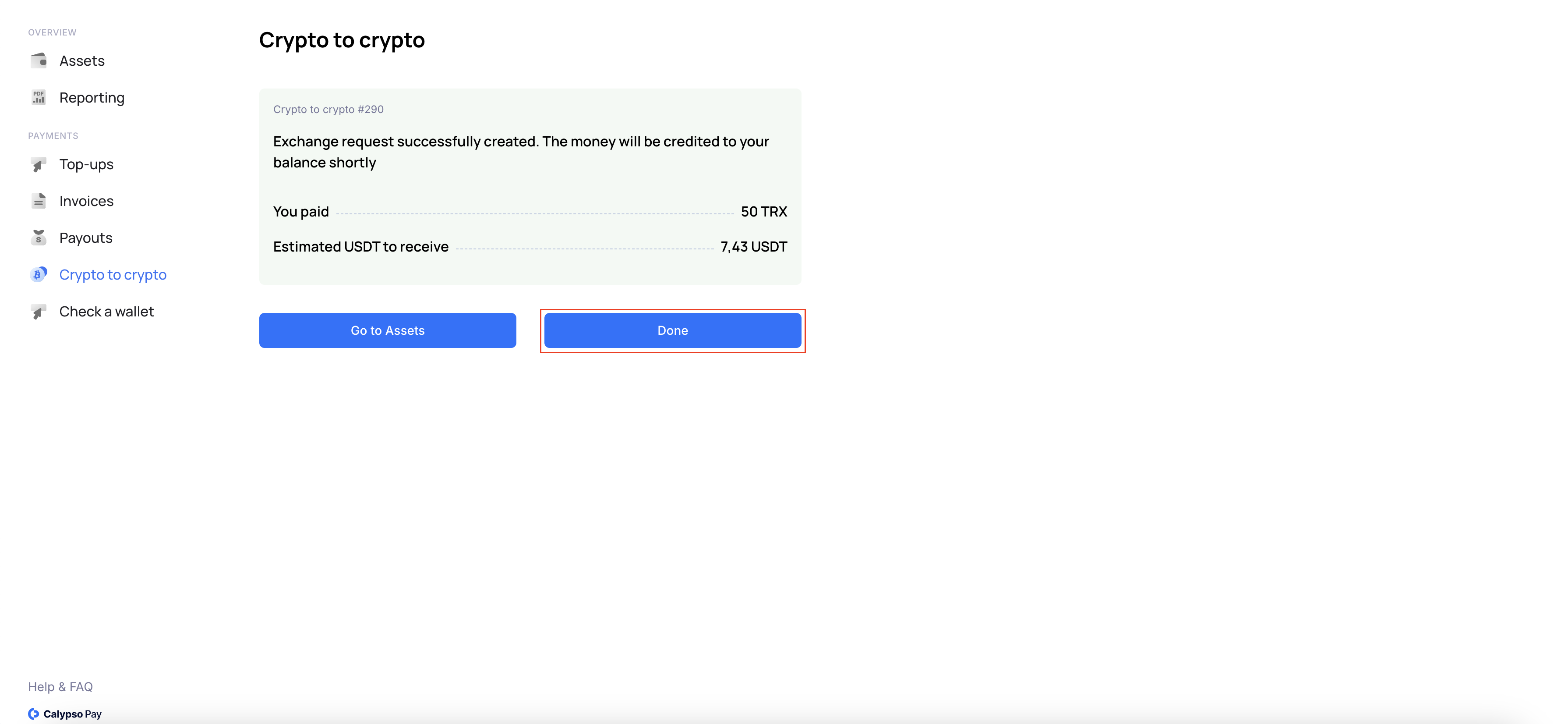
<figure><img src="https://files.readme.io/628cd1e583708c08ca33cfcbd0faa0c66bc58506464deb6ccb504053a47325d7-__2024-08-22__08.59.03.png" alt=""><figcaption></figcaption></figure>

9. On the exchange page in the list you will see the new exchange that you created appear, while the exchange is being processed you will see the status "In progress".
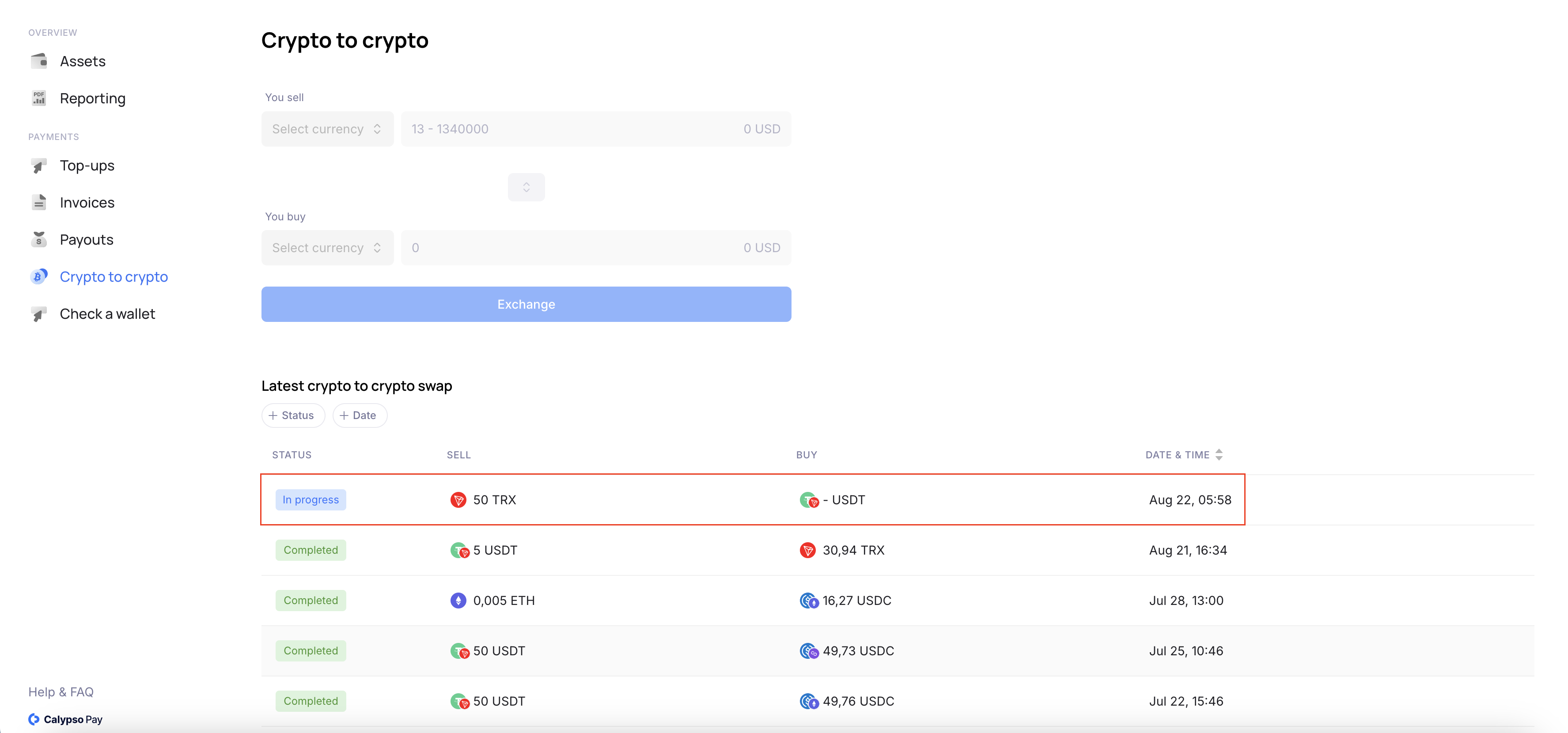
<figure><img src="https://files.readme.io/ae34d5dcf309bd88ac64128ea6367797a188baef813286ff7b0f3edad2e16dfc-__2024-08-22__08.59.40.png" alt=""><figcaption></figcaption></figure>

When the exchange is completed you will see the status "Completed"
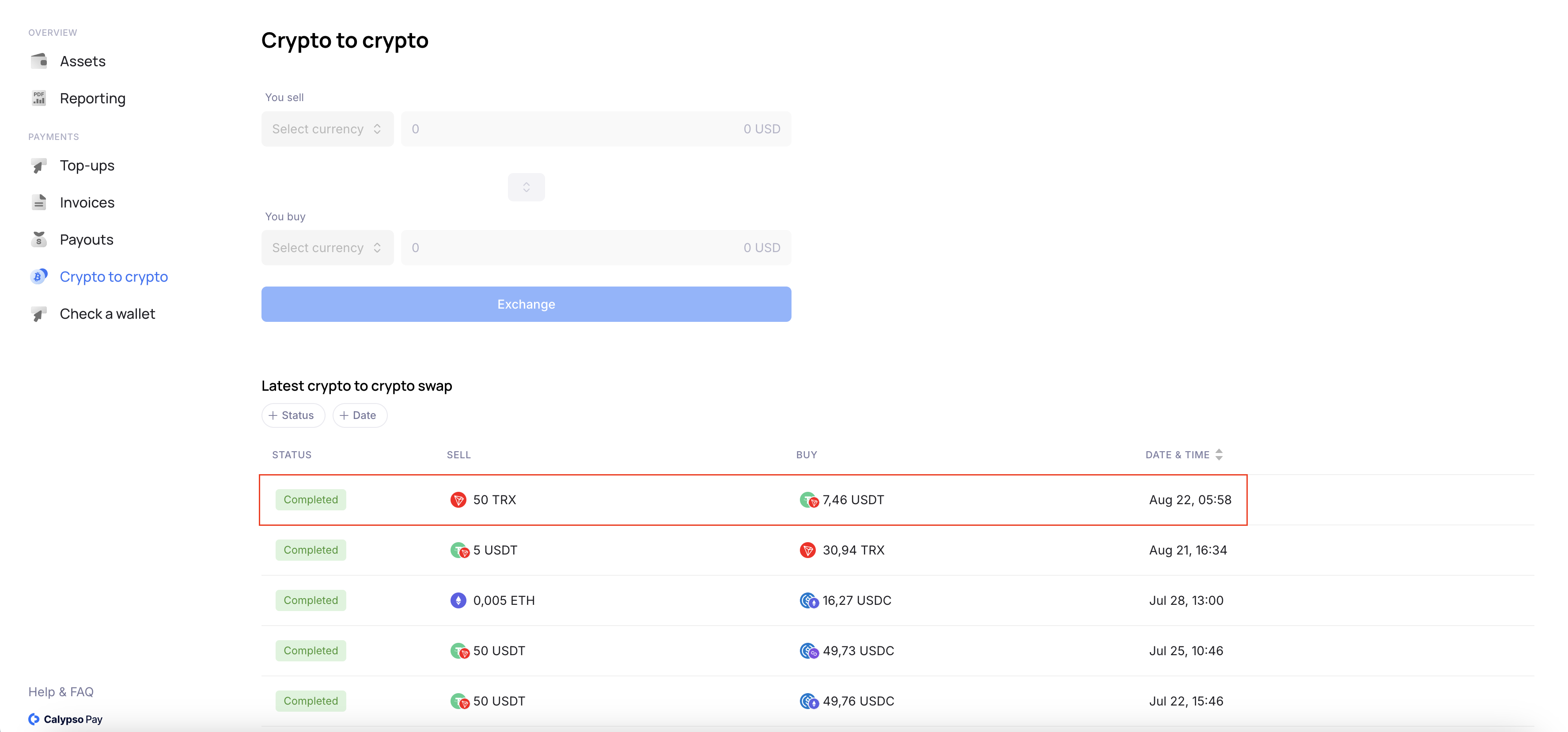
<figure><img src="https://files.readme.io/f058f303e325912216955d180894796c1cd526f60a213184e2db0408c00d04d3-__2024-08-22__09.00.23.png" alt=""><figcaption></figcaption></figure>

<br>


---

# Agent Instructions
This documentation is published with GitBook. GitBook is the documentation platform designed so that both humans and AI agents can read, navigate, and reason over technical content effectively. Learn more at gitbook.com.

## Querying This Documentation
If you need additional information that is not directly available in this page, you can query the documentation dynamically by asking a question.

Perform an HTTP GET request on the current page URL with the `ask` query parameter:

```
GET https://docs.calypso.money/get-started-with-calypso-ui/make-exchanges-via-ui/how-to-exchange-one-crypto-asset-to-the-other.md?ask=<question>
```

The question should be specific, self-contained, and written in natural language.
The response will contain a direct answer to the question and relevant excerpts and sources from the documentation.

Use this mechanism when the answer is not explicitly present in the current page, you need clarification or additional context, or you want to retrieve related documentation sections.